
 No filter
With WebSafe
No filter
With WebSafe
Live crop of a real news homepage
Drag to compare
No filter
With WebSafe
No app to babysit, no list of banned sites to keep current — a philosophy about what a parent actually needs to see.
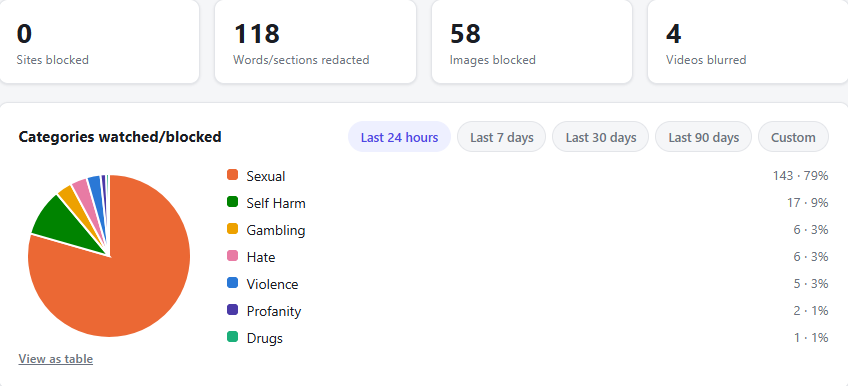
Your dashboard shows a category and how often it came up — never the specific page, image, or words. That's not a limitation, it's the point: a running record of exactly what your child looked at would turn every conversation into cross-examination. A pattern — flagged for violence three times this week — gives you something to actually act on: a moment to check in or adjust a setting, without either of you having to relive one specific, awkward page together.
Not staged mockups — screenshots from live sites, taken with WebSafe running.
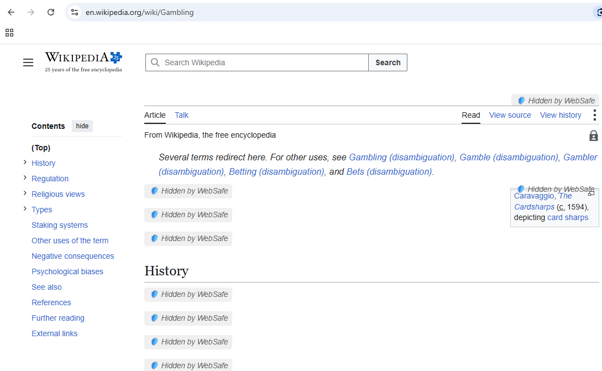
The Gambling article stays readable — only the specific paragraphs and inline image that cross this child's threshold are hidden, not the whole page.
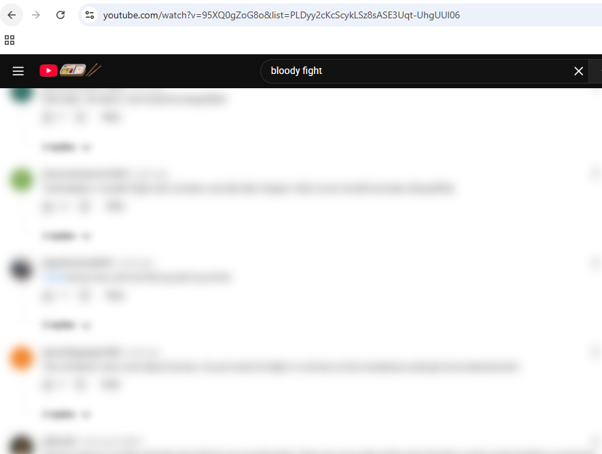
Every comment is judged on its own — the graphic replies under this video are blurred while the ordinary ones next to them stay visible.
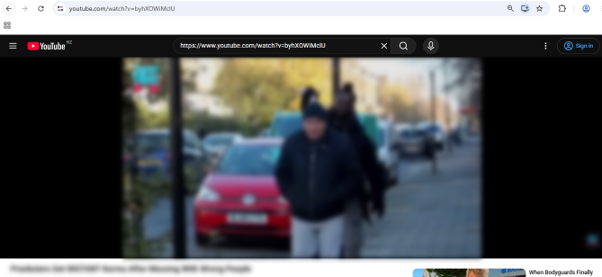
This video was flagged and blurred entirely — WebSafe captures an actual frame from the video itself and scores what's shown, rather than trusting the title or a thumbnail that might not exist.
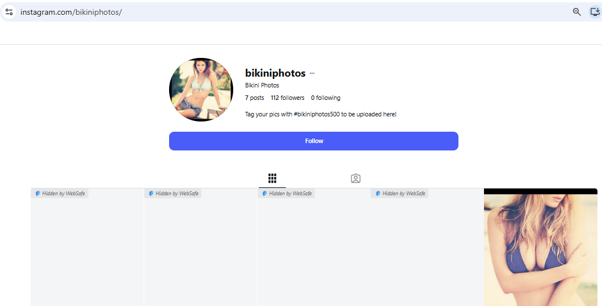
Four of the five photos on this account were caught and hidden automatically. One wasn't — you can see it, uncropped, above. We're showing you that on purpose.
No filter, this one included, catches everything every time. WebSafe is a strong second layer for the browsing your child does on their own — not a replacement for staying involved and having the conversation.
Strong filtering, privacy first. We never use your family's data — or even anonymised clicks on this site — to train WebSafe.
Things WebSafe does that a blocklist can't.
Text and images are read for actual meaning — euphemism, implication, visual content — evaluated fresh against each child's own settings, not matched to a static word list.
A built-in list of tens of thousands of known bad domains is blocked instantly, no setup required — plus your own domain block and allow lists for anything else you want to add.
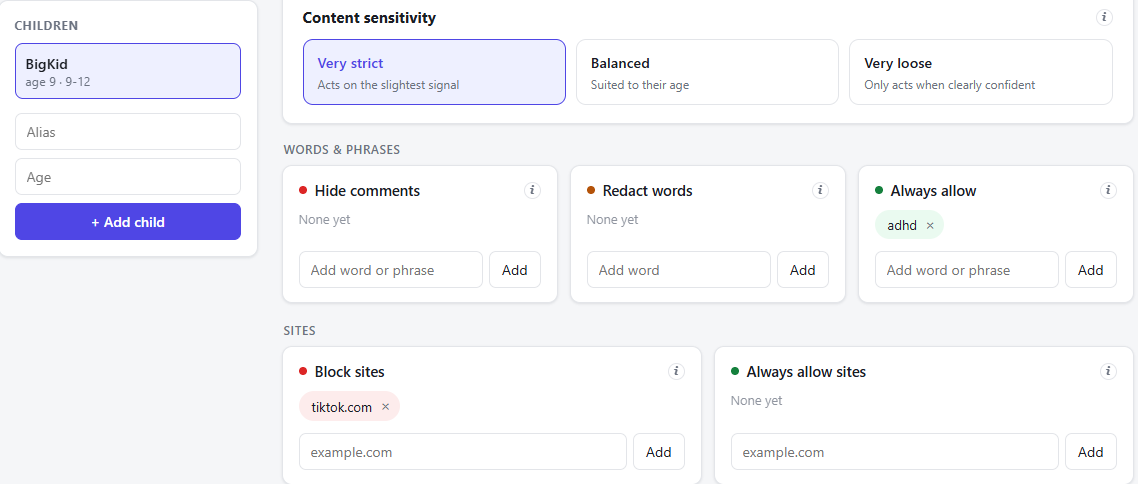
Every profile starts with sensitivity defaults for age — violence, sexual content, drugs, gambling, hate speech, self-harm and profanity — fully adjustable from there, plus your own keyword lists (block, redact or allow) and domain rules layered on top.
A child can request to unlink their browser, or ask for a short break (15 minutes to 4 hours) when something harmless gets caught — but either one needs a code that only ever appears on the parent dashboard, and a break switches itself back on when the time's up.
You see the category flagged and the action taken — allowed, blurred or removed — never the actual page text, image or a browsing history.
Inappropriate content in video previews is caught too, including thumbnails generated without a standard preview image.
One plan, the full product — same AI-based filtering, same features, no paywalled functionality.
Try it out, no commitment
For the whole household
Each linked browser extension counts as one install — not each laptop. One laptop running WebSafe in both Chrome and Edge is 2 installs, not 1. Your 5 installs are shared across the whole family, however you want to split them — all 5 on one child's devices, one each across five kids, or anything in between.
Run into a site or a kind of content this doesn't handle well yet? Email support@websafe.nz and let us know which page you're worried about — we'll tune the product for it. WebSafe is built to adapt to real families, not the other way around.